Identity Document
Prepare a Photo for a Russian Passport
A separate profile for a portrait for a Russian passport with an explicit note about the need to check current requirements.- Photo for a Russian passport
- 35×45 mm profile
- Source image check
An Exact Format Starts with Choosing the Purpose
Choose a document format, upload a portrait, and get a ready photo of the required size. The preview will be watermarked, and after payment the file without a watermark will be sent to the specified email.
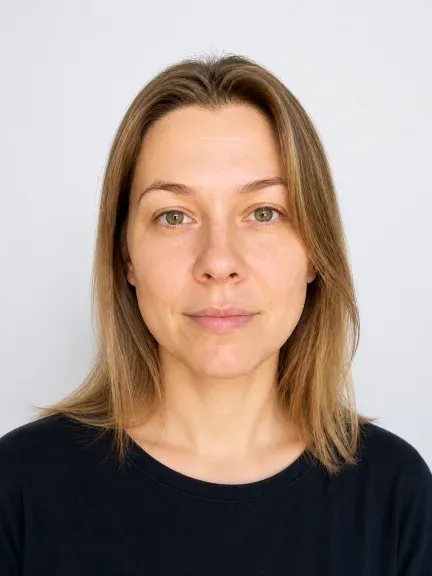
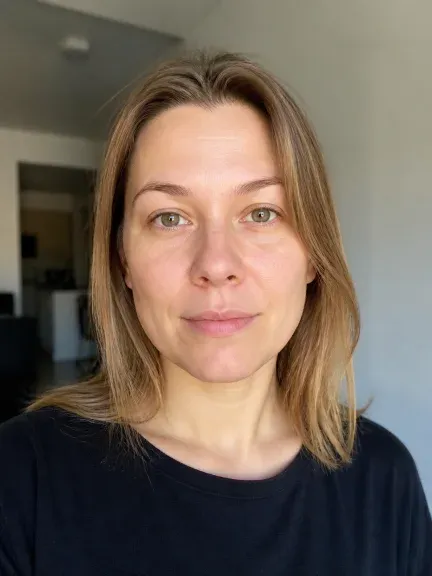
Choosing a Scenario
One size does not automatically suit all tasks. Choose a known scenario or check another format against the guidelines of the receiving organization.
Identity Document
Digital Channel
Application Form or Pass
Another Document
The sequence helps avoid confusing the purpose, file format, and printed result.
Specify the document or submission channel. If there are no requirements, first find the organization's guidelines.
You need a sharp portrait with a visible face, even lighting, and a suitable background. A profile view, blur, or obstructions are reasons to take a new shot.
Check the receipt: profile, dimensions, DPI, file size, and unverified conditions. For printing, use a separate 10×15 cm sheet.
Receipt and Verification Boundaries
After export, the selected preset, dimensions, DPI if available, file size, and check status should be clear. The currency of requirements and the acceptance decision must be confirmed via an official source or in the submission form.
About Photo Preparation
The service helps you choose the purpose, neatly place the portrait in the frame, and get a technically described file. The preset defines the output format, but does not replace the current instructions of a department, consulate, or organization.
Size, units, pixels, DPI, and submission method depend on the task. That is why a Russian passport, a foreign passport for Gosuslugi, and a 3×4 photo are placed in different scenarios.
These are metadata options for millimeter formats and printing. Choose the specific value based on the task and instructions, not as universal proof of compliance.
The source JSON contains 73 candidate presets for documents, visas, driver's licenses, and application forms. Separate URLs are created only for three confirmed TGA scenarios; the rest remain choices within the tool.
If the source image is blurry, taken in profile, or the face is covered, it is safer to reshoot. The tool must not change identity just to appear compliant.
Official requirements and acceptance decisions vary by document and channel. Before submission, check the current source; this landing is not a legal or departmental guarantee.

What Changes
Preparation should manage the frame, size, and file metadata. Identity, age, facial features, and hairstyle must not be substituted to achieve the result.
A narrow page helps you start with the right document; for another purpose, return to the general selection.
SelfyStudio Illustrations


Before Export
No. Size is only one parameter. Check the current requirements of the document and submission channel; the decision on acceptance is made by the relevant organization.
These are candidate options from the RU source JSON: documents, visas, driver's licenses, and application forms. The name or size of a preset does not replace checking the specific procedure.
The digital file is intended for the selected upload channel. The 100×150 mm sheet is a separate result for printing multiple copies with a 2 mm gap; print at 100% scale.
No, such source images should not be edited to create a "suitable" photo. Take a new shot with the face visible, even lighting, and the required head position.
No, the document scenario must not change identity, age, facial features, or hairstyle. Cosmetic retouching is disabled by default.
In the current submission form and on the official website of the relevant organization. Save the source and verification date next to the selected profile.
Start with the Purpose
First specify the document or submission channel, then check the file parameters and restrictions before use.