Digital Submission Channel

Prepare a Photo for a Foreign Passport for Gosuslugi

Prepare a digital portrait for the selected submission scenario and separately check the rules of the current Gosuslugi form. One profile does not cover all options.
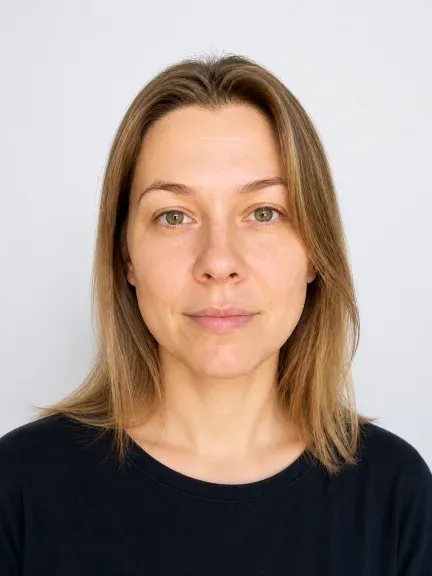
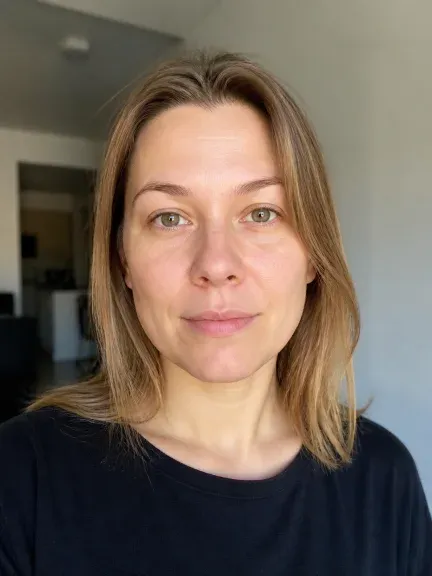
After
Before
BeforeAfter

Choose format

73
candidate profiles in the format catalog
300/600DPI
options for millimeter formats
10×15cm
print sheet with a 2 mm gap

Foreign Passport Scenario

First Choose the Channel and Document Option

The old and new samples should not be combined into a single guarantee. If the option is not specified, return to document selection and find the current guidelines.

Gosuslugi Channel

Digital File for the Application

Prepare the file separately from the printed result and compare it with the prompt of the current form before uploading.
  • Digital portrait
  • Form check
  • Not a universal preset

A Digital File and a Print Sheet Are Different Results

Digital File10×15 cm Sheet
PurposeFor uploading to the selected channelFor printing multiple copies
ParametersPixels, format, and DPI if a profile is available100×150 mm sheet size and 2 mm gap
VerificationWe show the selected profile and available checksAdditionally verify 100% print scale

How to Prepare a Photo for a Document

The sequence helps avoid confusing the purpose, file format, and printed result.

  1. 01

    Choose the Purpose

    Specify the document or submission channel. If there are no requirements, first find the organization's guidelines.

  2. 02

    Check the Source Image

    You need a sharp portrait with a visible face, even lighting, and a suitable background. A profile view, blur, or obstructions are reasons to take a new shot.

  3. 03

    Download the Result

    Check the receipt: profile, dimensions, DPI, file size, and unverified conditions. For printing, use a separate 10×15 cm sheet.
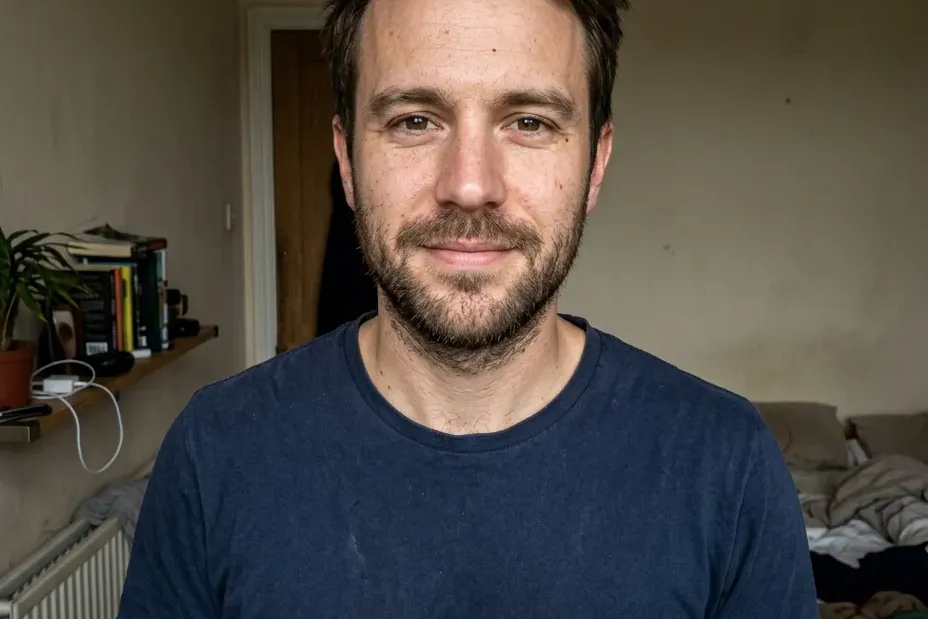
What to Check Before Uploading to Gosuslugi

  • Clarify the foreign passport option and current submission channel before choosing a preset.
  • Check that the face fits fully in the frame, the source image is sharp, and there are no decorative filters.
  • Check the pixels, file size, and other restrictions against the current application form.
Illustration of a digital portrait for a foreign passport
Source portraitFile for verification

Digital File Receipt

We Separate the Export from Form Rules

The receipt shows the selected channel, technical parameters, and unverified conditions. It does not replace the Gosuslugi prompt or an official source.

  • Channel and document option
  • Pixels and file size
  • Unverified form requirements
The exact range of Gosuslugi requirements and differences between samples require a fresh human/source readback.

Common Mistakes When Preparing a Photo

Treating 35×45 mm as a universal format
Clarify the document and submission channel: the same size does not mean the same requirements.
Mixing up a digital file and a print sheet
Choose a separate result: a file for upload or a 10×15 cm sheet for printing.
Trying to fix a bad source image with retouching
If the face is in profile, blurred, or obstructed, take a new shot instead of editing.
Printing with auto-fit
Before printing, check the sheet size and 100% scale according to the organization's instructions.

Foreign Passport and Gosuslugi

Digital Photo for the Selected Submission Scenario

Prepare a file for the current form, not for an abstract universal standard.

01

A Digital File Is Not Printing

An online application requires a separate digital result; the 10×15 print sheet is a different scenario.

02

Check the Form Before Submission

Channel, sample, and application restrictions may be updated. Check them in the current Gosuslugi form.

We do not assert official pixels, limits, or acceptance without a source and verification date.
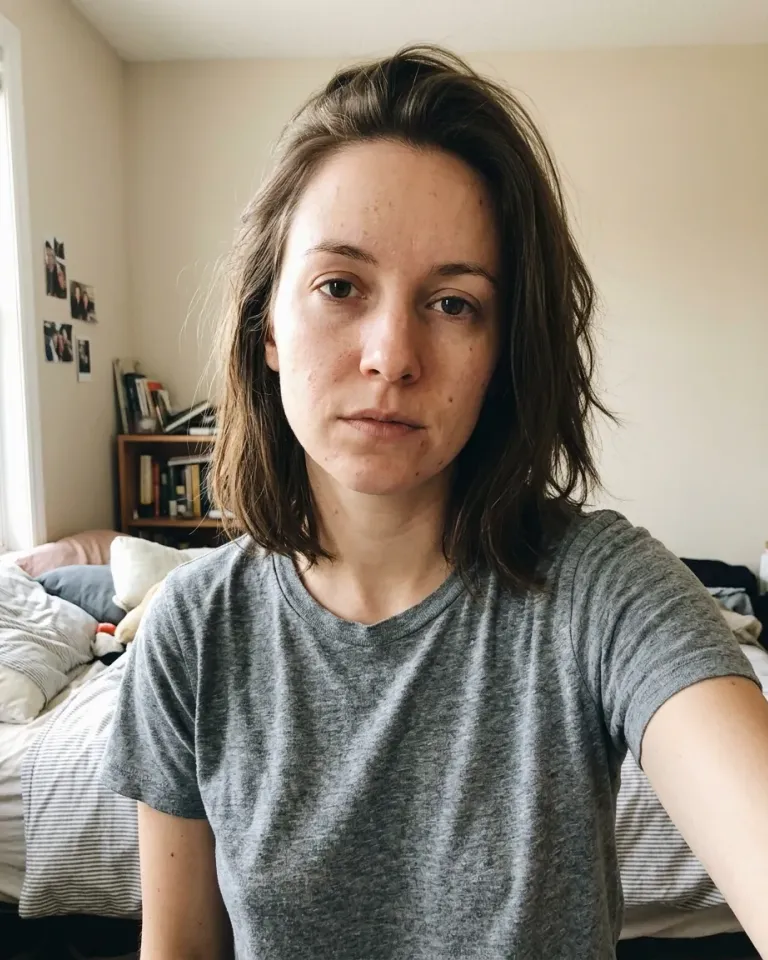
Source portrait before cropping
Illustration of cropping for the selected profile
Selected format

What Changes

The Frame and Export Change, Not the Person

Preparation should manage the frame, size, and file metadata. Identity, age, facial features, and hairstyle must not be substituted to achieve the result.

Choose a Document and Upload a Portrait

Choose a Separate Scenario

A narrow page helps you start with the right document; for another purpose, return to the general selection.

SelfyStudio Illustrations
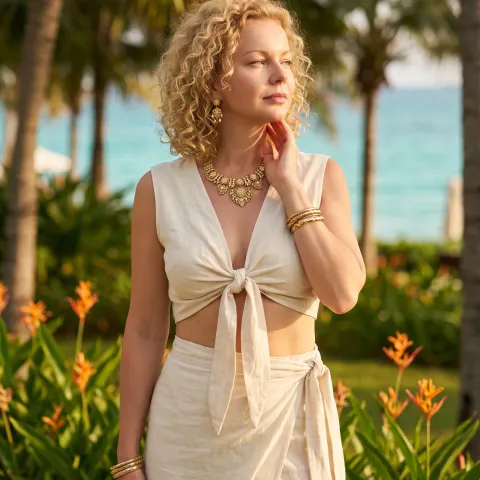
One Source Image, Different Technical Tasks

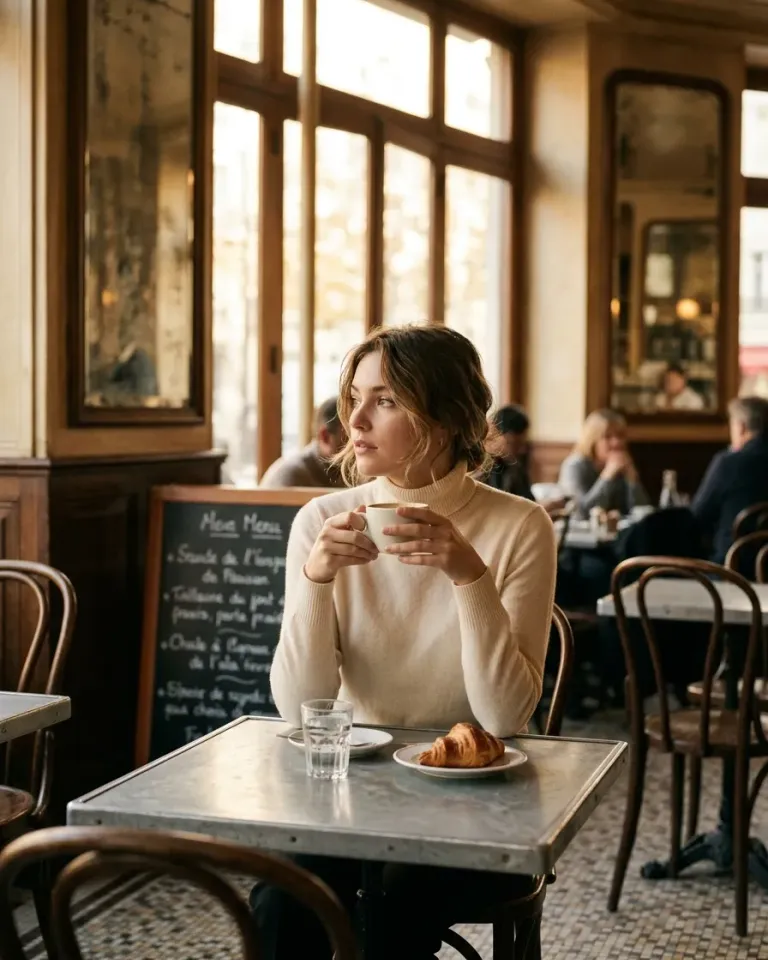
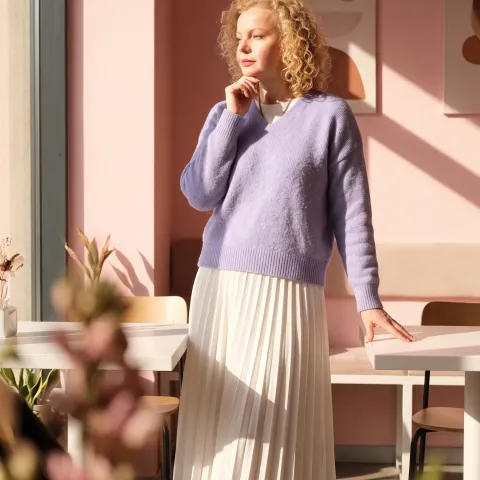
One Source Image, Different Technical Tasks — 1One Source Image, Different Technical Tasks — 2One Source Image, Different Technical Tasks — 3One Source Image, Different Technical Tasks — 4

Before Submission

Questions About a Photo for a Foreign Passport via Gosuslugi

Is one preset suitable for any foreign passport?

No. First choose the option and submission channel, then compare the file with the current application form.

Can I send a print sheet instead of a file?

No. Digital upload and printing are different results; use the file that matches the prompt of the current channel.

Gosuslugi

Choose a Submission Scenario and Upload a Portrait

Check the technical receipt and the current form restrictions before submitting the application.